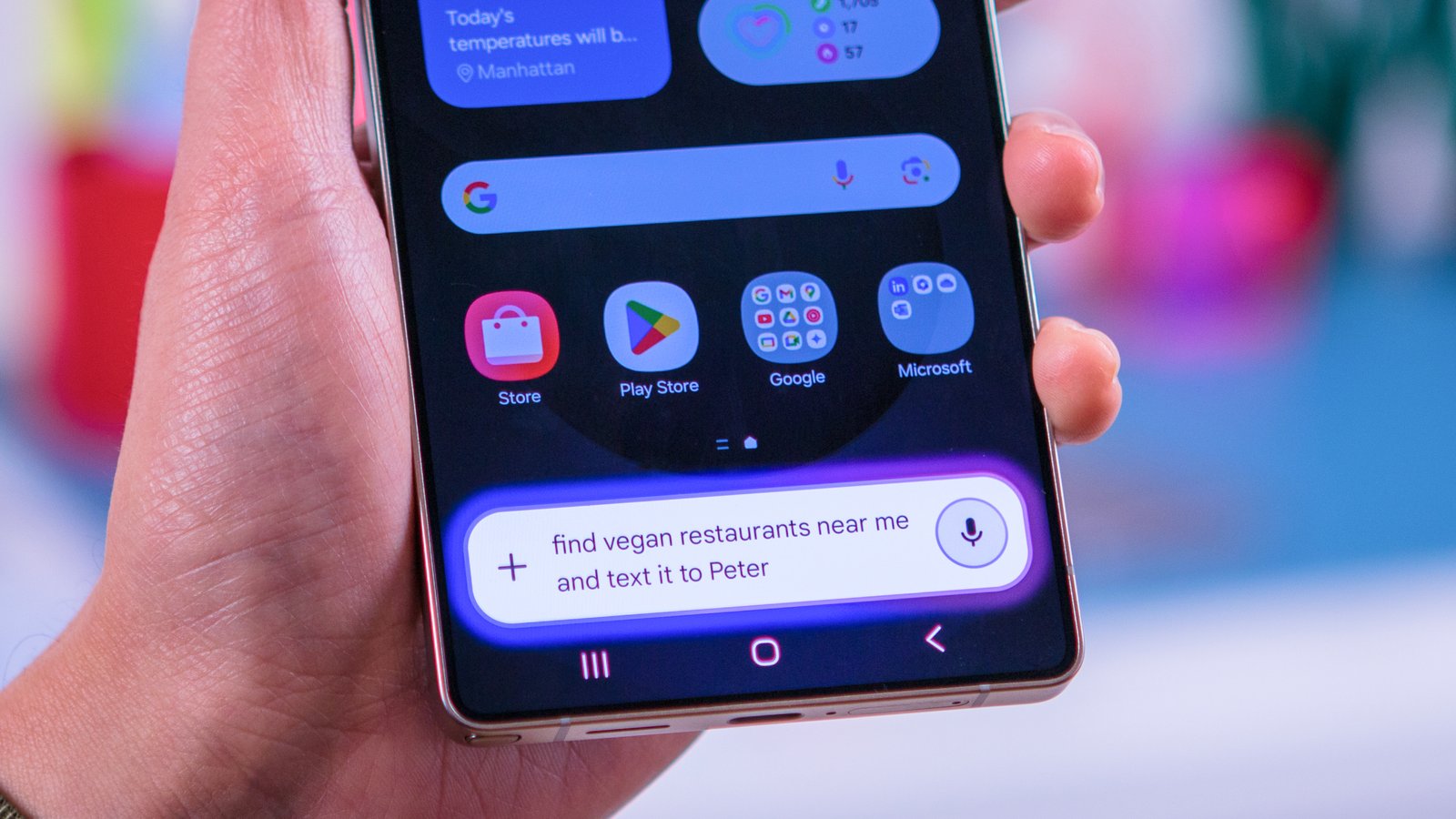
What you need to know
- Gemini Extensions are now referred to as “Apps,” with the same functionality as before.
- The term “Apps” replaces “Extensions” across Android, iOS, and web platforms.
- Google’s Gemini 2.0 Flash Thinking Experimental technology promises a faster and smarter user experience.
Google has rebranded “Gemini Extensions” to a simpler name: “Apps.” Along with this change, the apps benefit from the improved Gemini 2.0 version for enhanced performance.
Users of Google Gemini may have noticed the transition from the “Extensions” menu to “Apps” on their devices. This update was confirmed by Google in their recent Workspace Updates blog.
This name change does not alter the functionality of the apps, ensuring a consistent user experience. However, it may take some time for users to adapt to the new terminology.
Gemini Apps empower Google’s AI chatbot to interact with various web services and mobile features beyond basic queries. The transition to “Apps” is now complete on Android, iOS, and web platforms.
Google’s decision to rename and enhance these features seems deliberate, aiming to integrate them seamlessly into the Gemini ecosystem.
In addition to the name change, Google introduces Gemini 2.0 Flash Thinking Experimental to provide a more efficient and intelligent user experience, particularly for frequent users of these tools.
Google’s continuous refinement of its reasoning models culminated in the release of the Gemini 2.0 Flash Thinking Experimental, benefiting all Gemini users regardless of their subscription plan.