Android Central Labs

Android Central Labs is a weekly column devoted to deep dives, experiments, and a focused look into the tech you use. It covers phones, tablets, and everything in between.
I’m a little late in the game, but I finally got my hands on the Samsung Galaxy S24 FE in late March so I could do some additional testing. I enjoy camera deep dives and display analysis for Android Central Labs, and while I fully expected this to be a run-of-the-mill Samsung release, the display really surprised me.
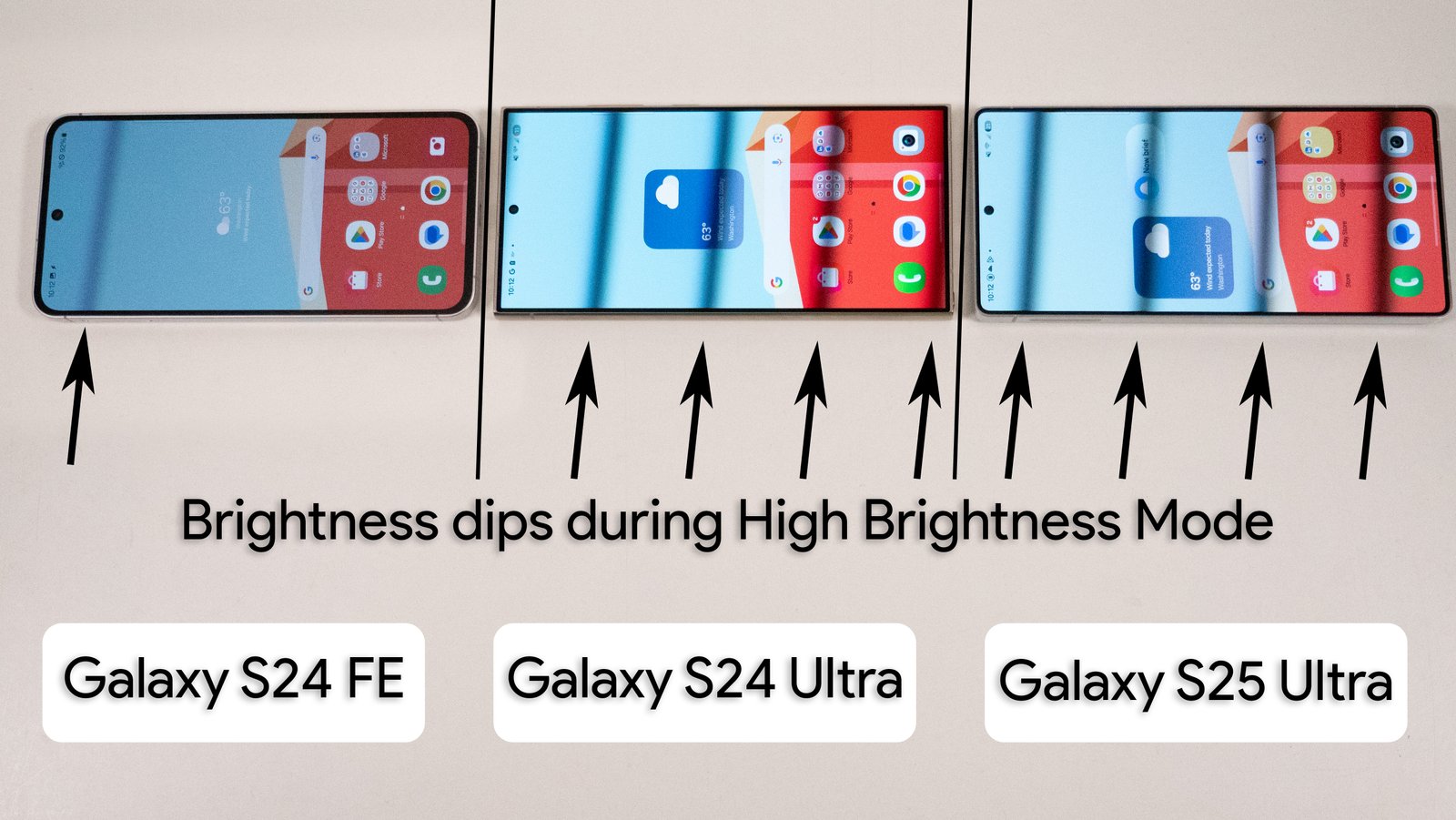
But it’s not the color accuracy or some other “normal” display metric that impressed me. It’s the High Brightness Mode (HBM). This special mode exists on all modern phones and typically turns on when the automatic brightness sensor detects something as bright as sunlight. But the Galaxy S24 FE’s does something different from every other Samsung phone I’ve tested: it switches to DC dimming, unlocking the full brightness potential of the display.
Typically, all Samsung Galaxy phones with AMOLED screens use PWM dimming at all brightness levels, withholding the display’s true maximum brightness level. Not only that, but PWM dimming makes people like me feel awful within just a few minutes, hurting my eyes and giving me a headache. That gives the S24 FE’s HBM a unique advantage that other Samsung phones don’t have, and it makes me wonder why Samsung doesn’t use it more often.
Forcing high brightness mode
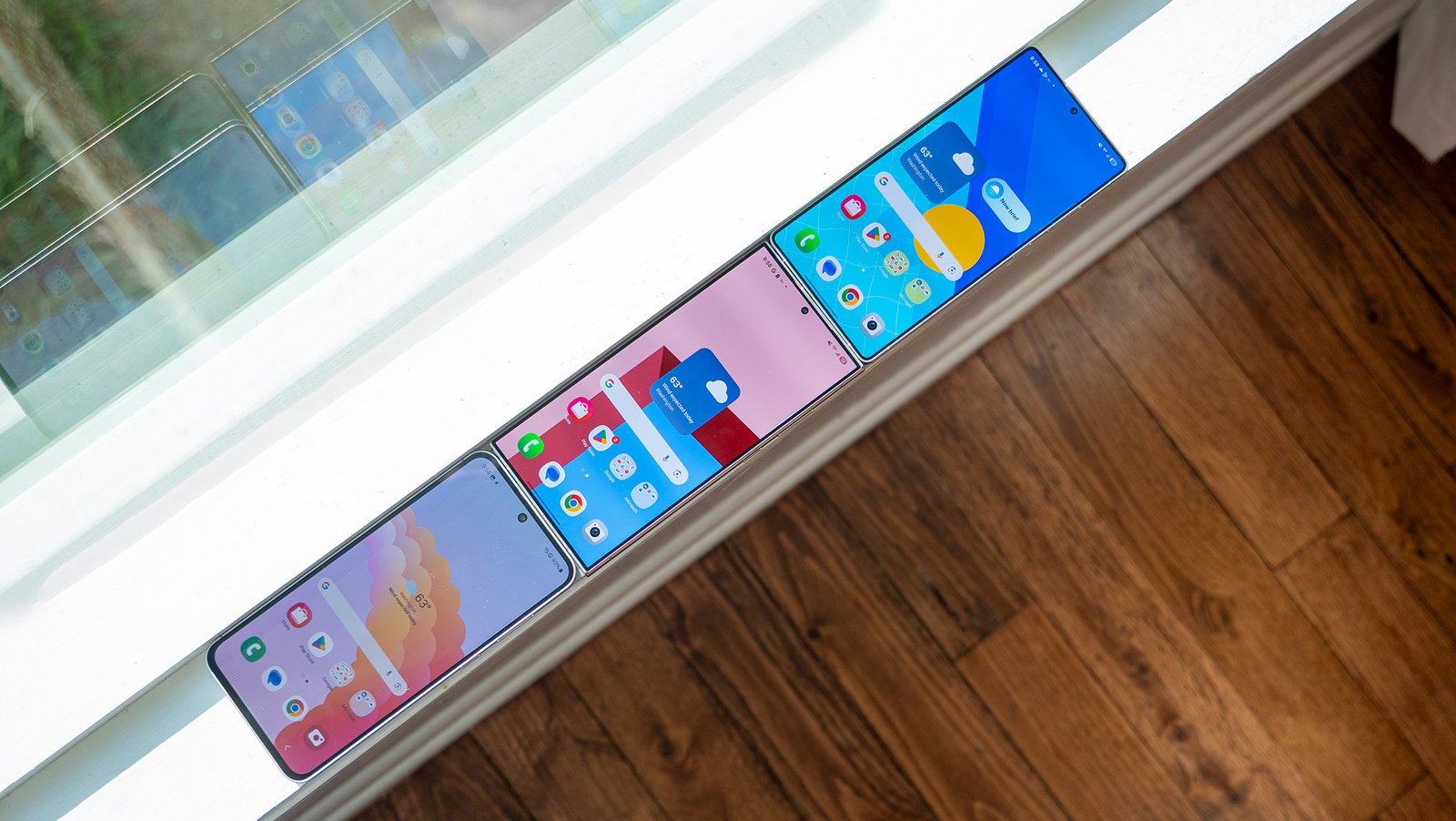
My normal display testing procedure involves a light meter to determine brightness levels and flickering potential, a microscope to see the subpixel arrangement and if the display dithers, and a flashlight to force High Brightness Mode so I can separately measure how a display behaves in the sun.
It was during this flashlight test — where I turn on the torch on a smartphone and hold it near the top of the display — where I found the S24 FE’s special mode kick in. Theoretically, we could make Samsung flagships more eye-friendly by forcing High Brightness Mode on all the time and then using a screen dimmer app to reduce the brightness a different way, but we have to figure out how to force HBM all the time in the first place.
I checked all my usual sources on Reddit, Telegram, and even among other groups of tech journalists and no one seemed to know how other than what I had already done. It’s not exactly viable to walk around holding a flashlight up to your phone, so there had to be another way.
High Brightness Mode is something that only kicks in when a bright light source (like the sun) is shining on the display.
Searching the Google Play Store for apps that do the job returns lots of results. I spent money on several apps but none of them worked. Google has changed a lot on the backend of Android in recent years and system-level functions like HBM aren’t typically accessible to apps without root access, so this was a dead-end.
So I turned to ADB, the command line solution for all your Android modification needs. I dialed down into /sys/class/backlight/panel and found the max_brightness setting I was looking for. You can force HBM on some Android phones by using a command like “echo 1 >> /sys/class/backlight/panel/max_brightness” to change this setting to 1, which means “enabled.”
Unfortunately, I got a “permission denied” response, which meant I had to have root access to do this. Rooting a Samsung phone is bad news, as it trips Knox security and requires all kinds of tomfoolery to get things working properly again so, yet again, this was a dead-end.
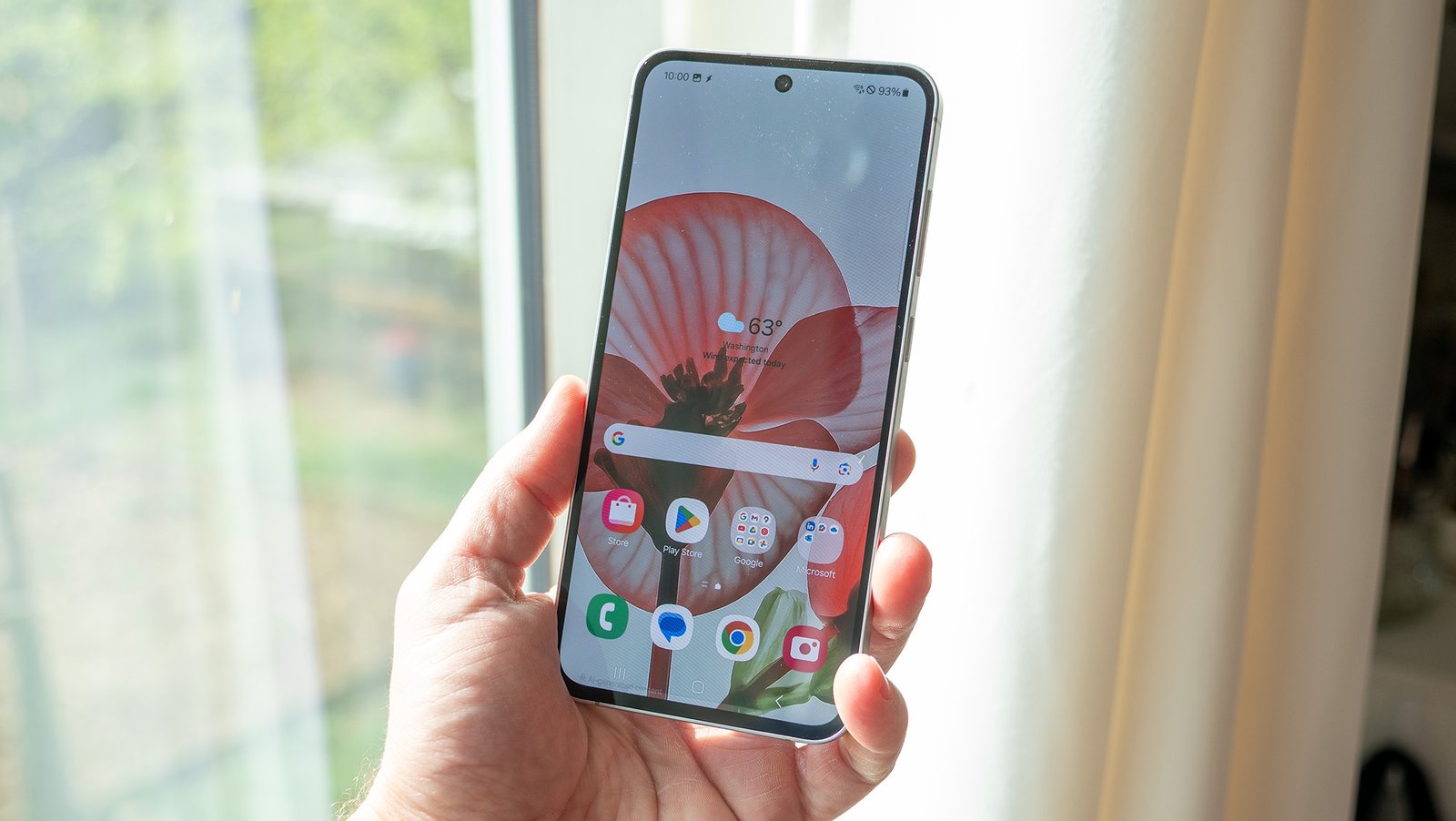
High Brightness Mode often doubles the display’s peak brightness, unleashing its full potential.
So then I got more desperate. What could possibly trick a sensor into thinking it’s in the sun? I tried applying a piece of foil to the screen, but that didn’t work. Light sensors are passive acceptors of light, not producers, but I hoped the foil would cause some kind of loop by reflecting the display and causing it to think it was under brighter lighting conditions. Oh well.
Maybe taping an LED to the screen and covering it would work? Sure, this was a potential solution but it not only requires some kind of external power supply for the LED, but it’s obviously not a full-time solution as it’s both bulky and trashy looking.
No, the only real solution is for Samsung to allow users to enable High Brightness Mode manually, something we’d have to petition en-masse to achieve.
High brightness, full potential